


Update BIR CAS/CBA Toggle Set-up in QNE AI Cloud Accounting
- Published on
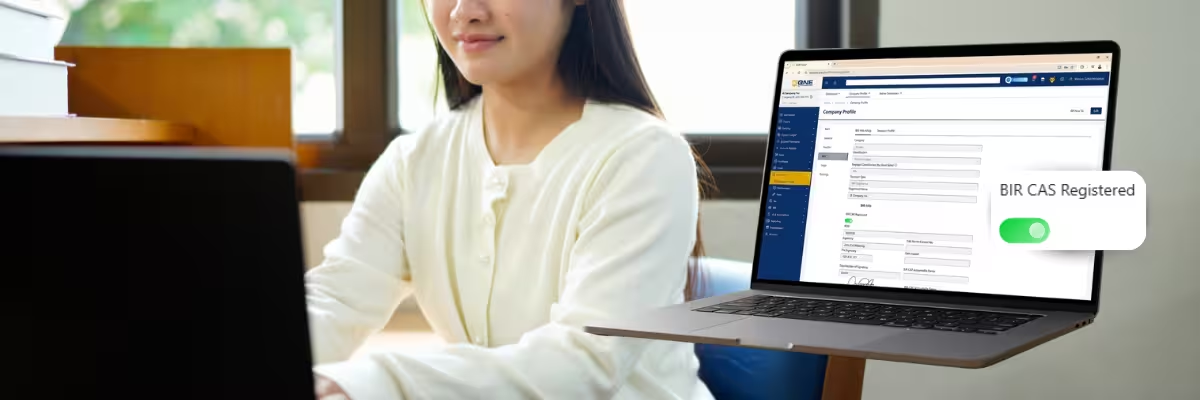
If your business is already BIR Computerized Accounting System (CAS)/Computerized Book of Accounts (CBA) registered, we encourage you to take a moment to ensure your QNE AI Cloud Accounting account reflects this update.
This is part of keeping your account information complete and aligned with your current business registration details within the system.
To support a smooth and consistent experience, we’ve included a simple setting where you can indicate your CAS registration status. Some clients may have already enabled this, while others may still need to take a quick look at their company profile.
Updating this setting is a quick and straightforward step that only takes a few seconds, but it helps ensure your account details remain properly organized and up to date.
Why This Update Matters
Keeping your account settings up to date ensures that your system continues to reflect your current business status.
1. Maintains Accurate System Information
Updating your CAS status ensures that your account reflects your latest registration, helping keep your records consistent within the system.
2. Supports Seamless System Alignment
An updated setting helps ensure your QNE AI Cloud Accounting stays consistently aligned with your current business registration details, supporting a smooth and well-organized system experience.
3. Enhances Record Clarity and Organization
With the correct status enabled, your reports and account information remain clearly structured and properly categorized within your QNE AI Cloud Accounting system, making everything easier to manage and reference.
4. Keeps You Prepared
Maintaining updated system settings helps ensure you are always ready for any future checks or documentation needs.
Who Should Do This?
This update is recommended for:
- Businesses with approved Computerized Accounting System (CAS) Registration
- Businesses registered with Computerized Books of Accounts (CBA)
How to Update BIR CAS/CBA Toggle Set-up in QNE AI Cloud Accounting?
You can update your account in just a few clicks:
1. Log in to QNE AI Cloud Accounting.
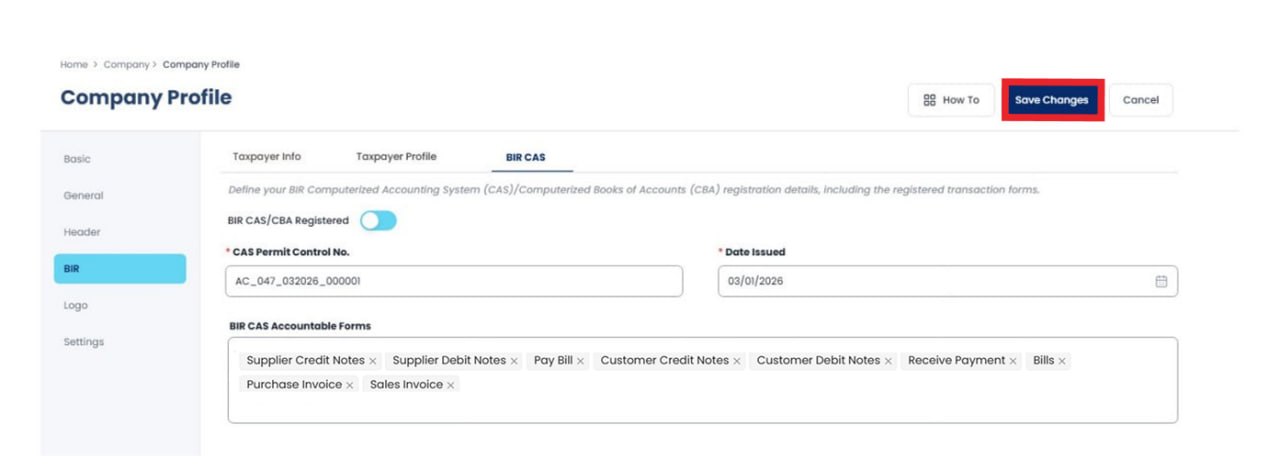
2. Navigate to: Company module > Company Profile > BIR section > BIR CAS tab.
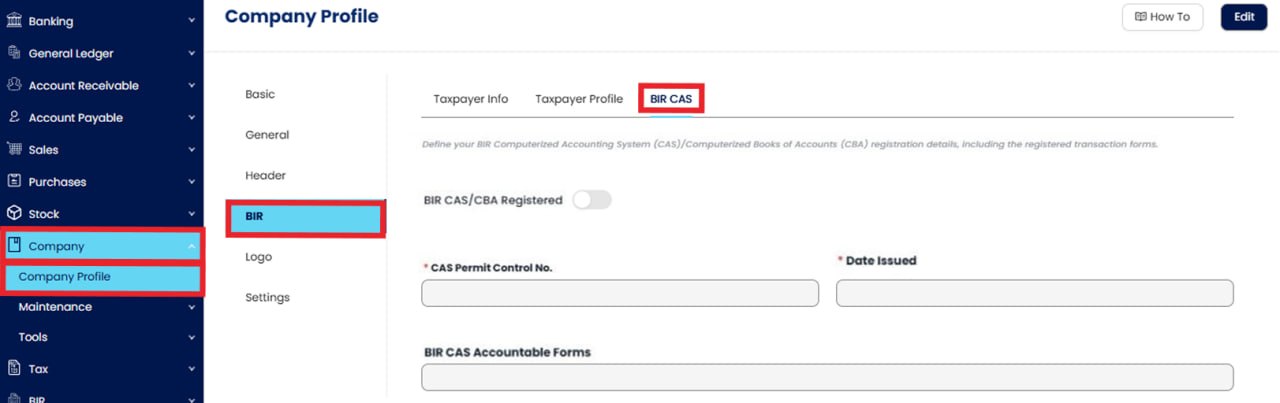
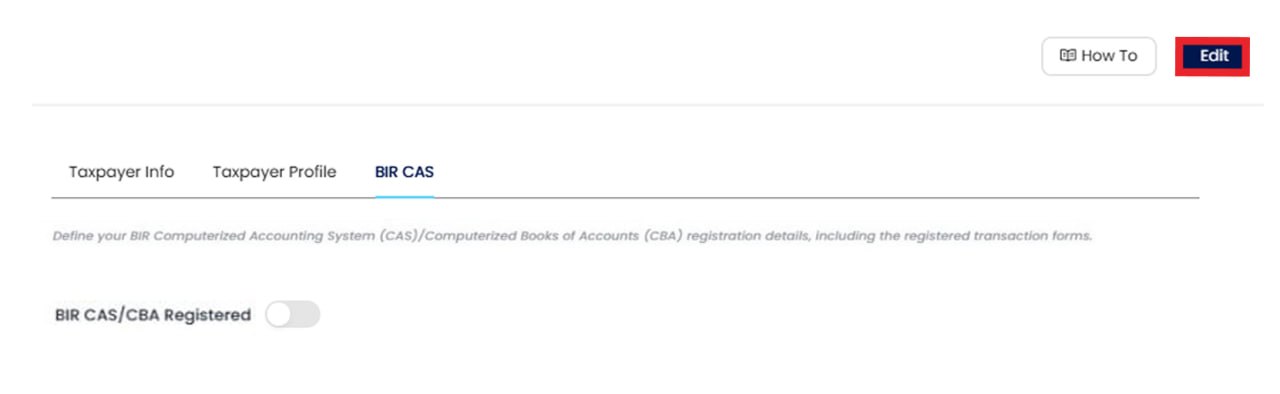
3. Click Edit to enable changes to BIR CAS/CBA information.
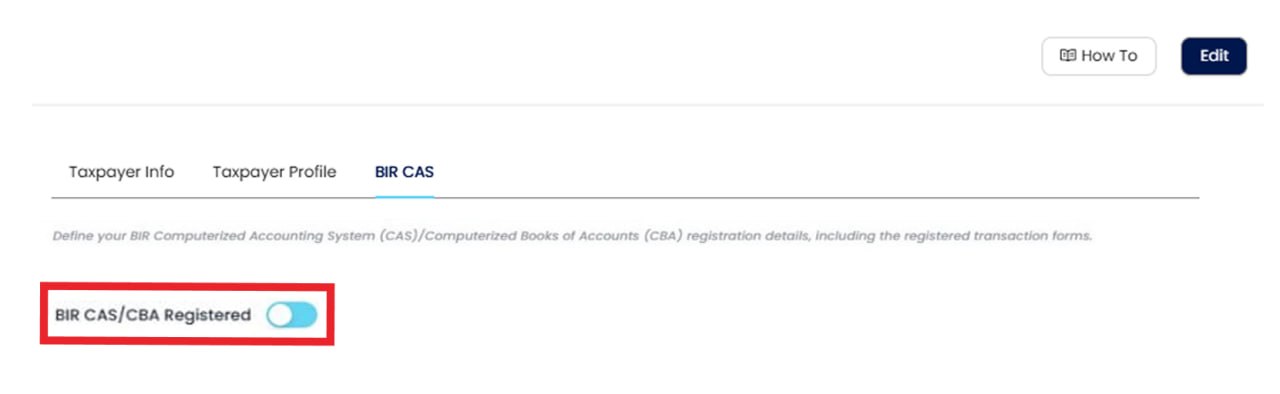
3.1 Enable BIR/CAS CBA Registered.
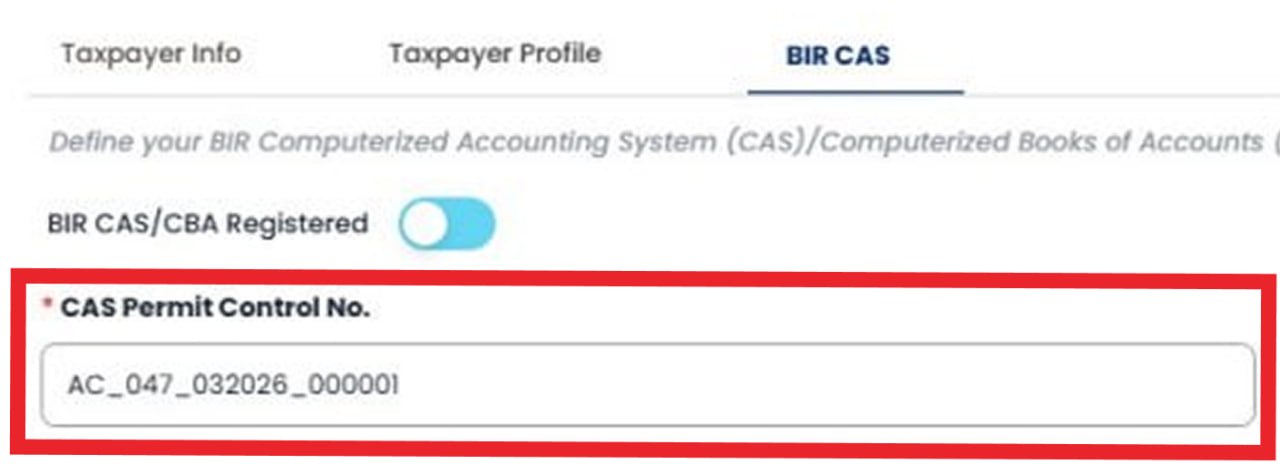
4. Enter the CAS Permit Control Number (AC#). Corresponds to “ACCN No.” on your approved Acknowledgement Certificate.
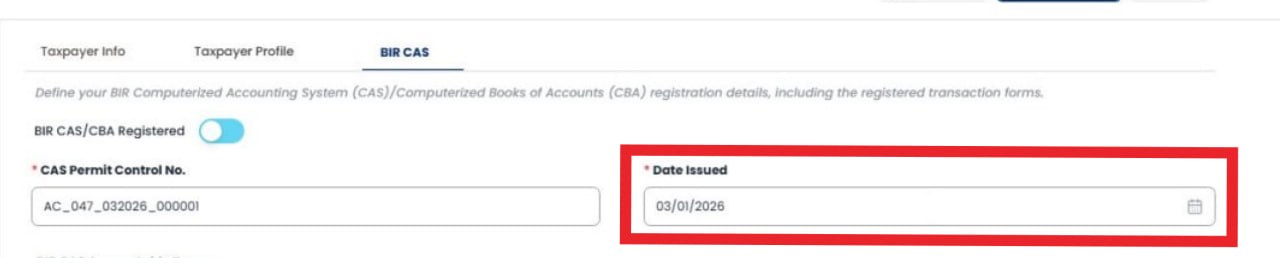
5. Select the Date Issued from your approved Acknowledgement Certificate.
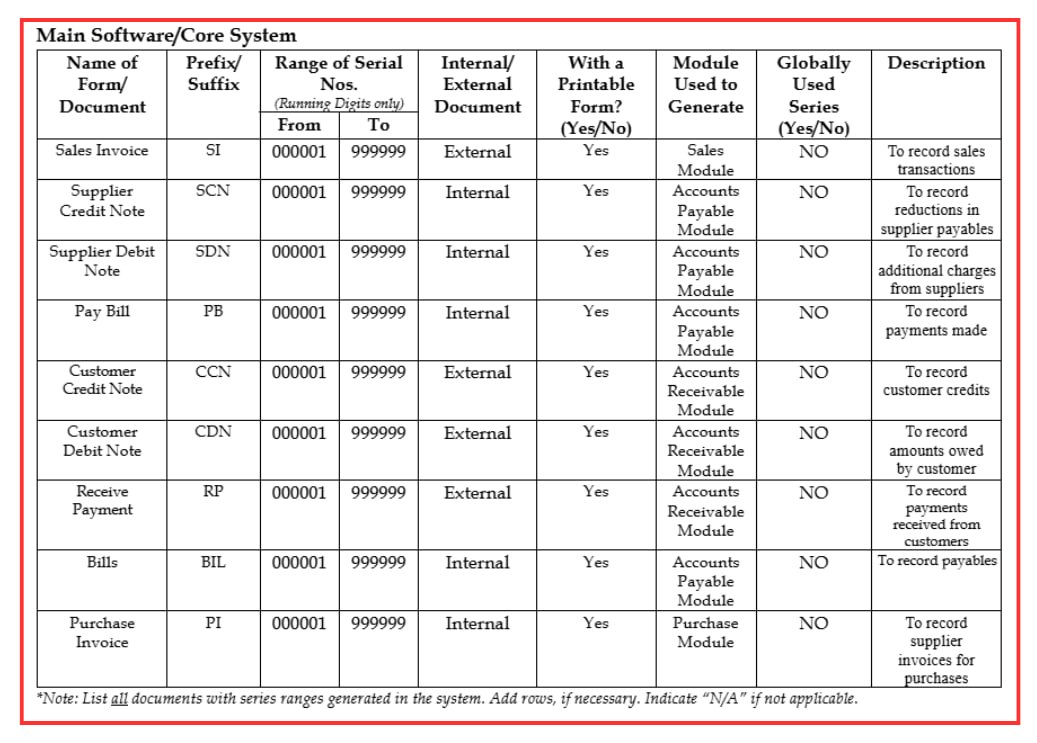
6. Choose only those listed in Part II: List of System-generated Accountable Forms of your AC.

Refer to the corresponding forms indicated in your Annex C-1.
7. Click Save Changes.
A Quick Reminder
Your CAS registration and your system settings are separate steps. Even if your registration is already approved, this update ensures your QNE AI Cloud Accounting reflects it correctly.
Taking a few seconds to complete this step helps keep your account up-to-date.
Update Your Account Today in Just a Few Seconds
Keeping your system updated is part of maintaining a smooth and reliable accounting process. Need assistance or would like help confirming your setup? Our team is ready to support you. Contact us for assistance in updating your account and ensuring everything is properly aligned.
Frequently Asked Questions (FAQs)
Why do I need to tick the “BIR CAS Registered” option?
Ticking this option helps keep your account information updated and aligned with your actual CAS registration. It ensures your system reflects the correct status and maintains accurate records.
I am already CAS registered. Do I still need to update this in the system?
Yes. Even if your CAS registration is already approved, you still need to manually enable the “BIR CAS Registered” setting so your QNE AI Cloud Accounting account reflects this update.
Does enabling this setting affect my existing data or reports?
No. Enabling the “BIR CAS Registered” option does not change your existing data. It simply updates your account status within the system.
What happens if I don’t update this setting?
Your system may not reflect your CAS-registered status, which can lead to inconsistencies between your actual registration and your account information.
How long does it take to update the setting?
The update only takes a few seconds. Once you tick the checkbox and save, your account is immediately updated.